Setup guide
Setting up Pebble.
Seven steps, about ten minutes. Do them in order and Pebble will be talking to you at the end.
Open the Pebble appTip: in Safari tap Share → Add to Home Screen, so Pebble is one tap away.
Before you start
- Pebble
- Out of the box, on a desk.
- The power adapter from the box
- The Indian plug, with the round 5 V 3 A connector.
- Your phone
- Any phone with a camera.
- Your home Wi-Fi
- Its name and password. The 2.4 GHz network.

Pebble, turned round to its back. Drag it to turn it further.
Where things are
- Power socket
- A round socket in the back window of the base, marked 5V 3A. This is where the adapter goes.
- USB-C and the power button
- On the side of the head. USB-C is only for developers updating firmware by cable — you do not need it.
Use only the adapter that came in the box — 5 V, 3 A, with the round 5.5 × 2.1 mm plug. A different adapter can damage Pebble.
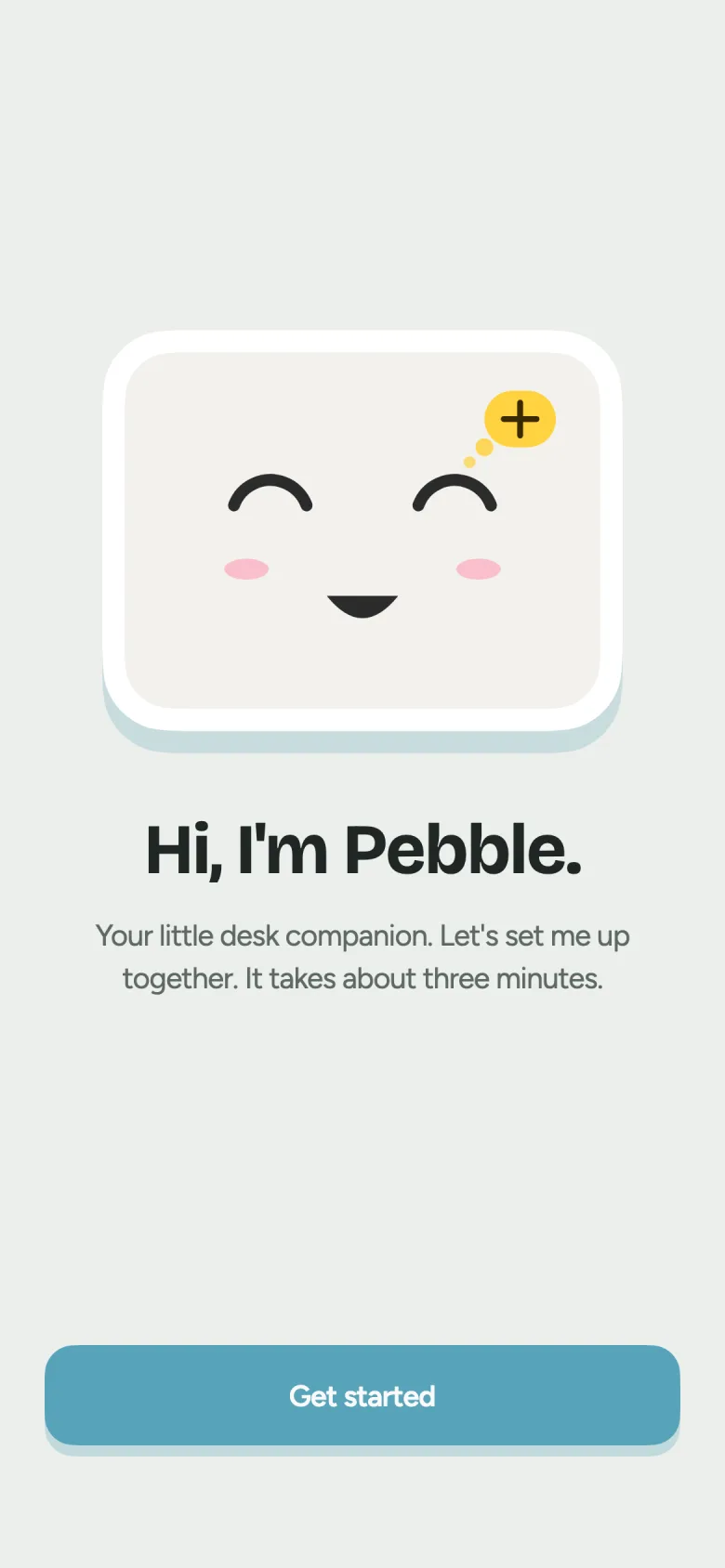
Open the Pebble app
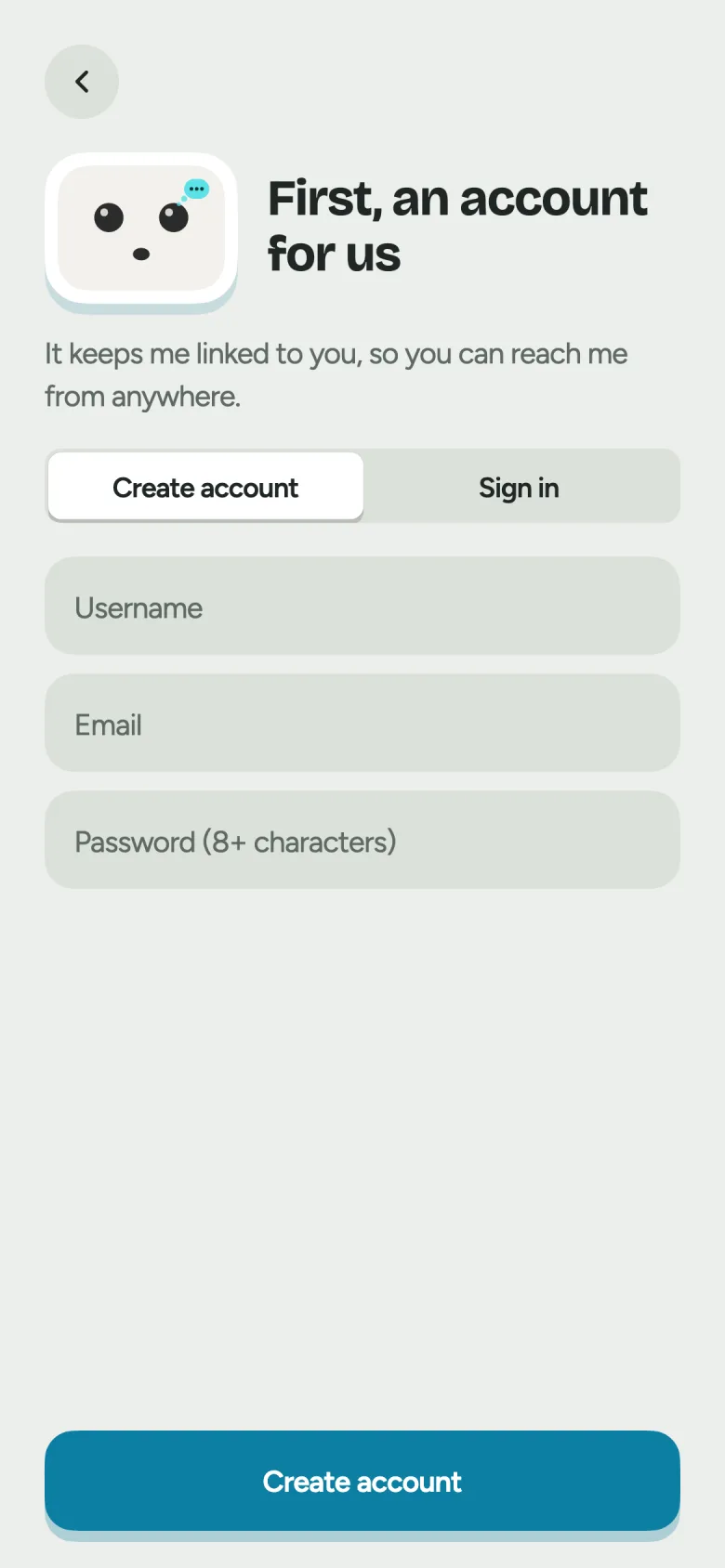
Tap Open the Pebble app. Create an account with a username, your email and a password of at least 8 characters — or sign in if you already have one.
Plug Pebble in
Put Pebble on your desk. Push the round plug of the power adapter from the box into the socket at the back of the base, marked 5V 3A. Plug the adapter into the wall and switch it on.
Pebble wakes up by itself and its face appears. If the screen stays dark, press the power button on the side of its head once.
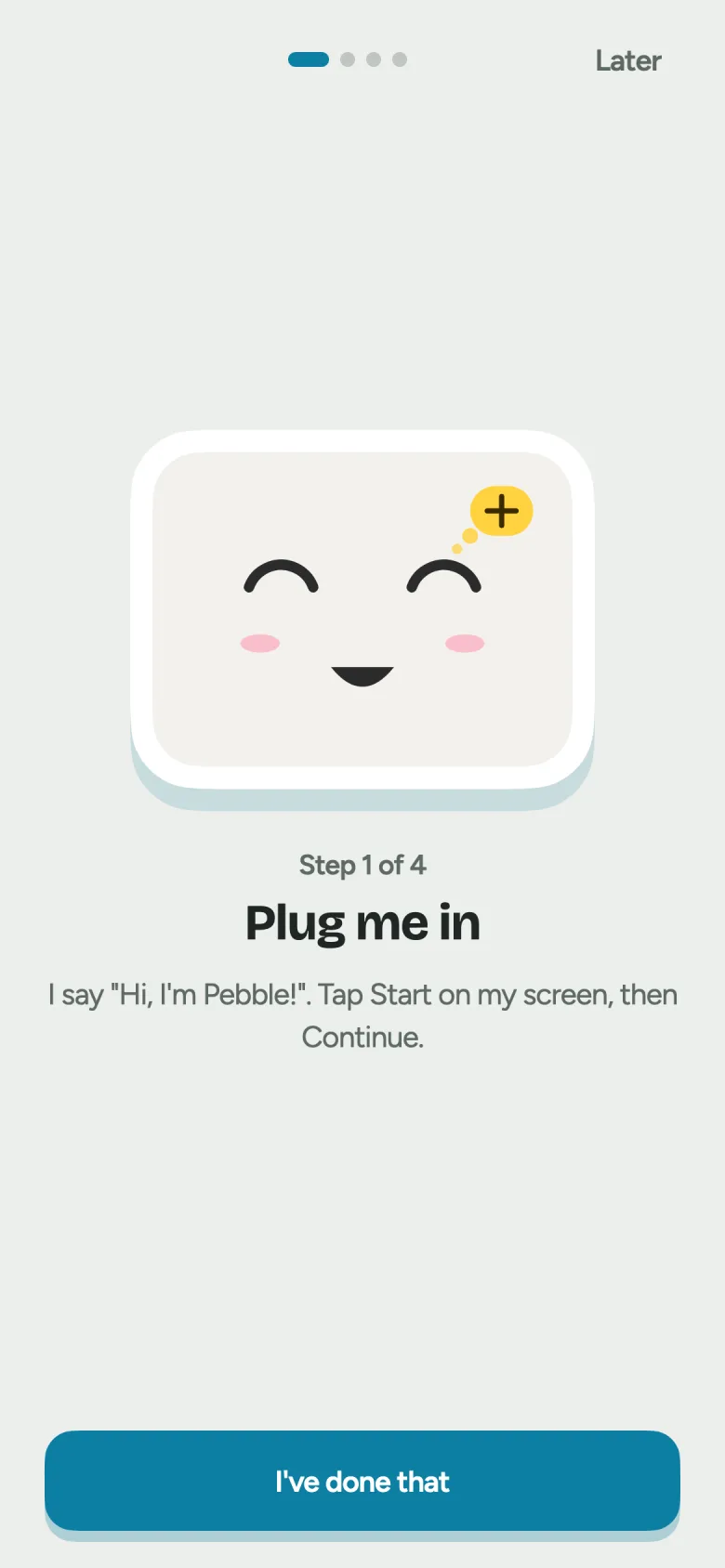
Pebble says “Hi, I’m Pebble!” — tap Start on its screen, then Continue.
Join Pebble’s Wi-Fi
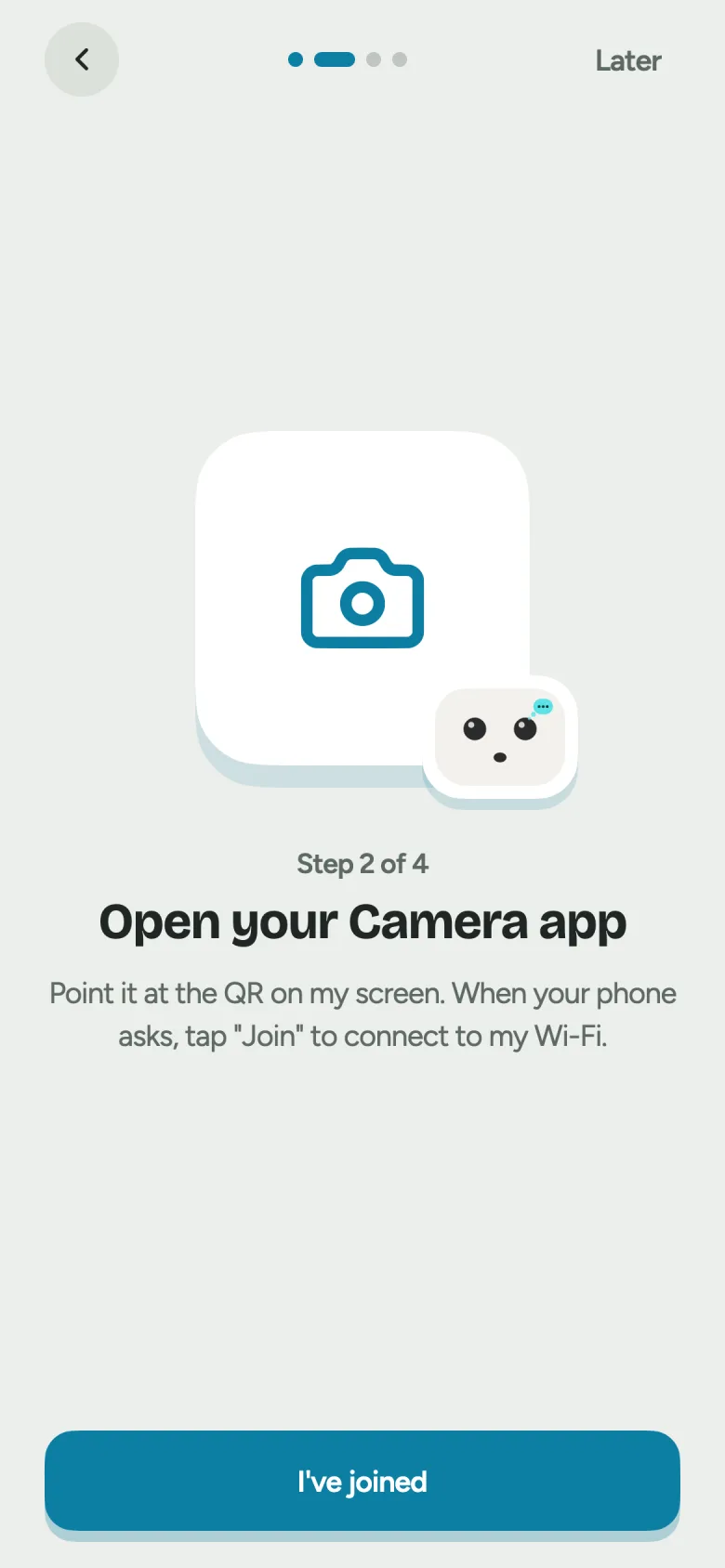
Open your phone’s Camera app, point it at the QR on Pebble’s screen, and tap Join.
No camera? Pebble also shows its network name and password under the QR. Join Pebble-XXXX from Settings → Wi-Fi instead.
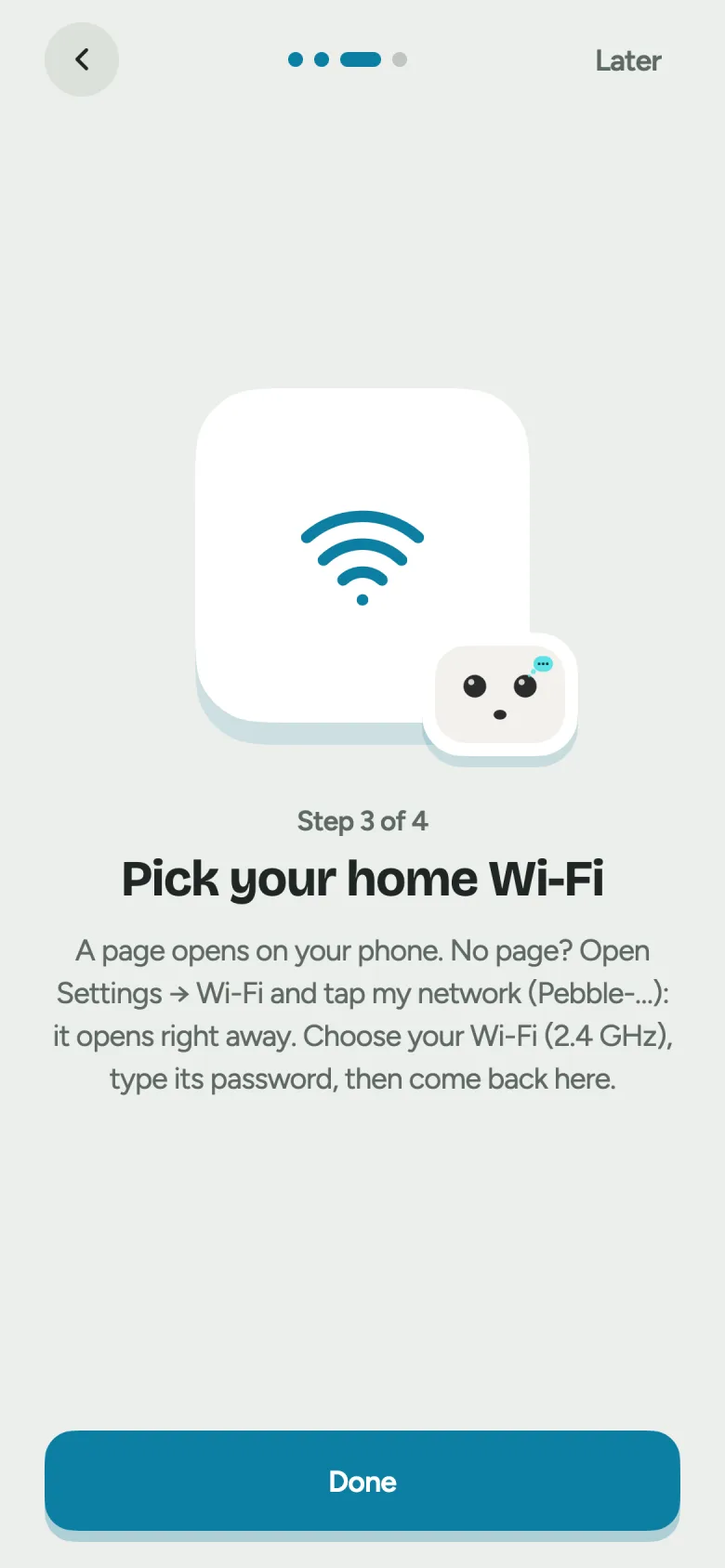
Choose your home Wi-Fi
A page opens on your phone. Pick your home Wi-Fi — the 2.4 GHz one — and type its password.
No page? Open Settings → Wi-Fi and tap Pebble-XXXX. It opens right away.
Then go back to the Pebble app.
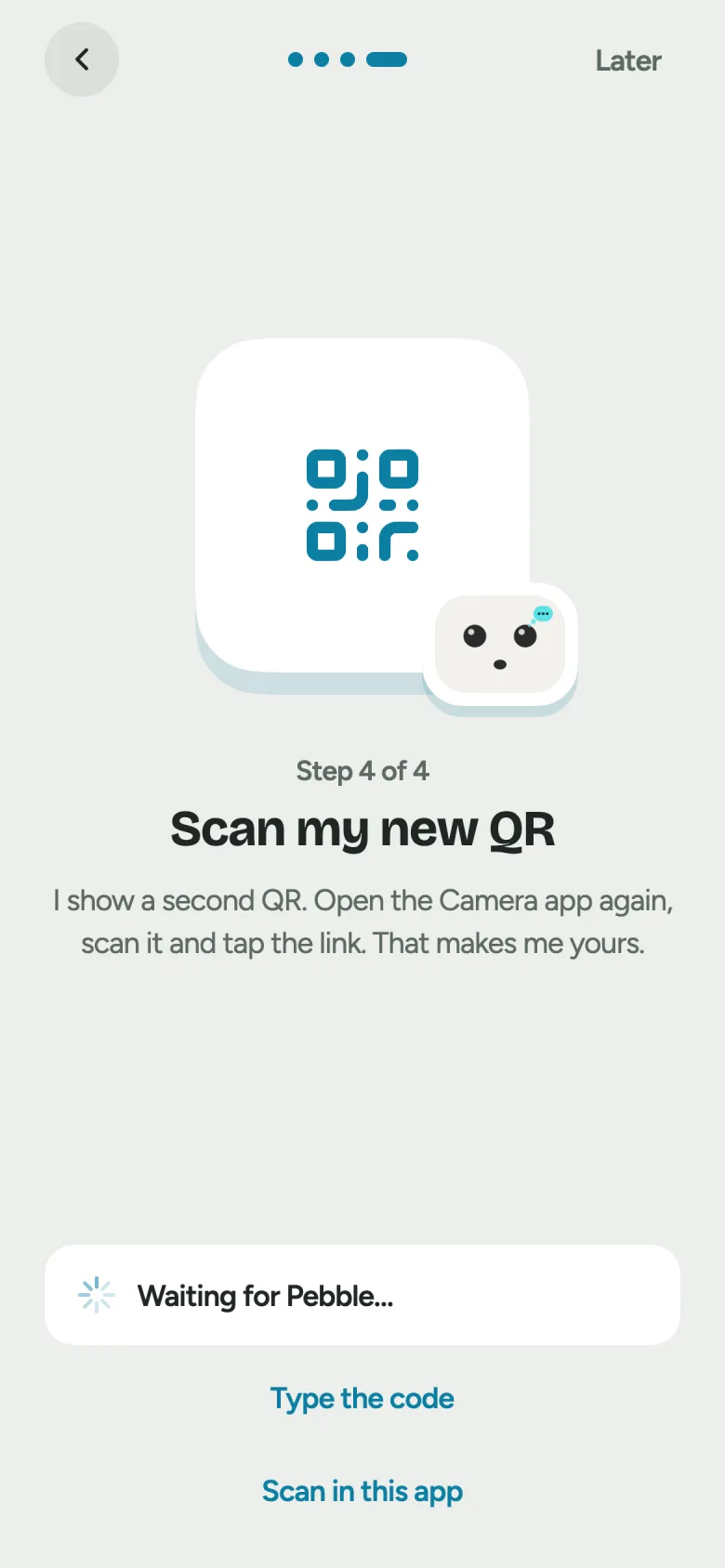
Scan the second QR
Pebble shows a new QR and a six-digit code. Scan it with the Camera app and tap the link, or type the six digits into the app. That makes Pebble yours.
Pebble restarts once now. Give it about 20 seconds.
Pick a face and a name
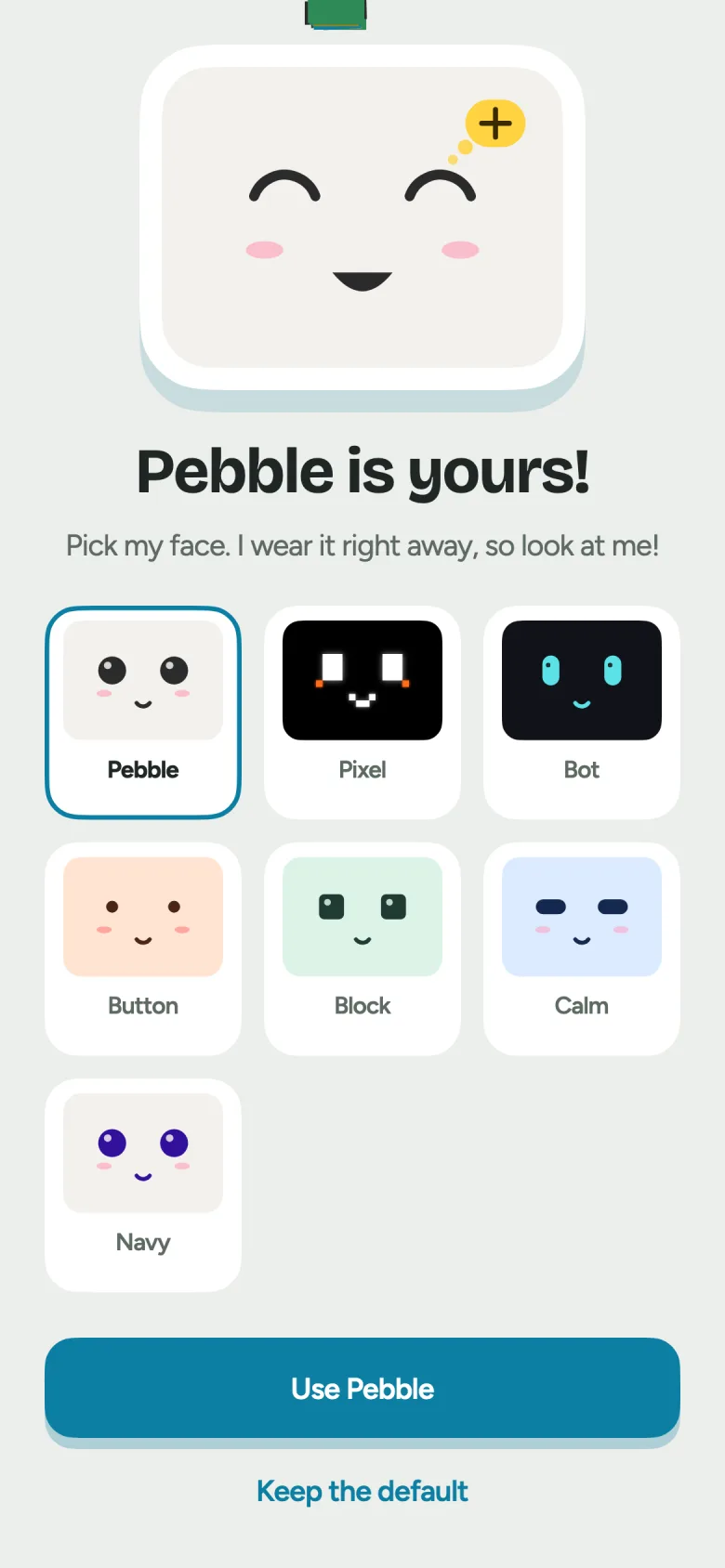
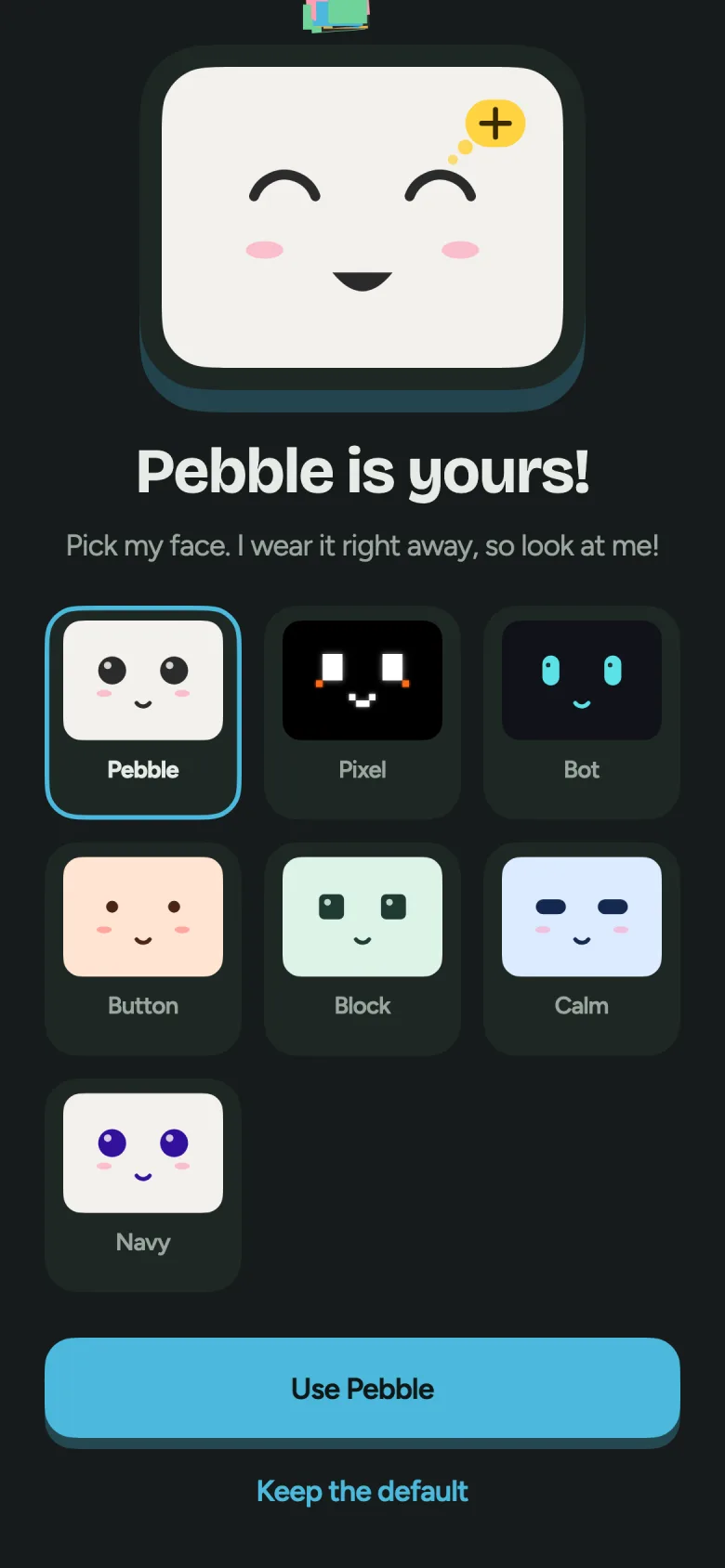
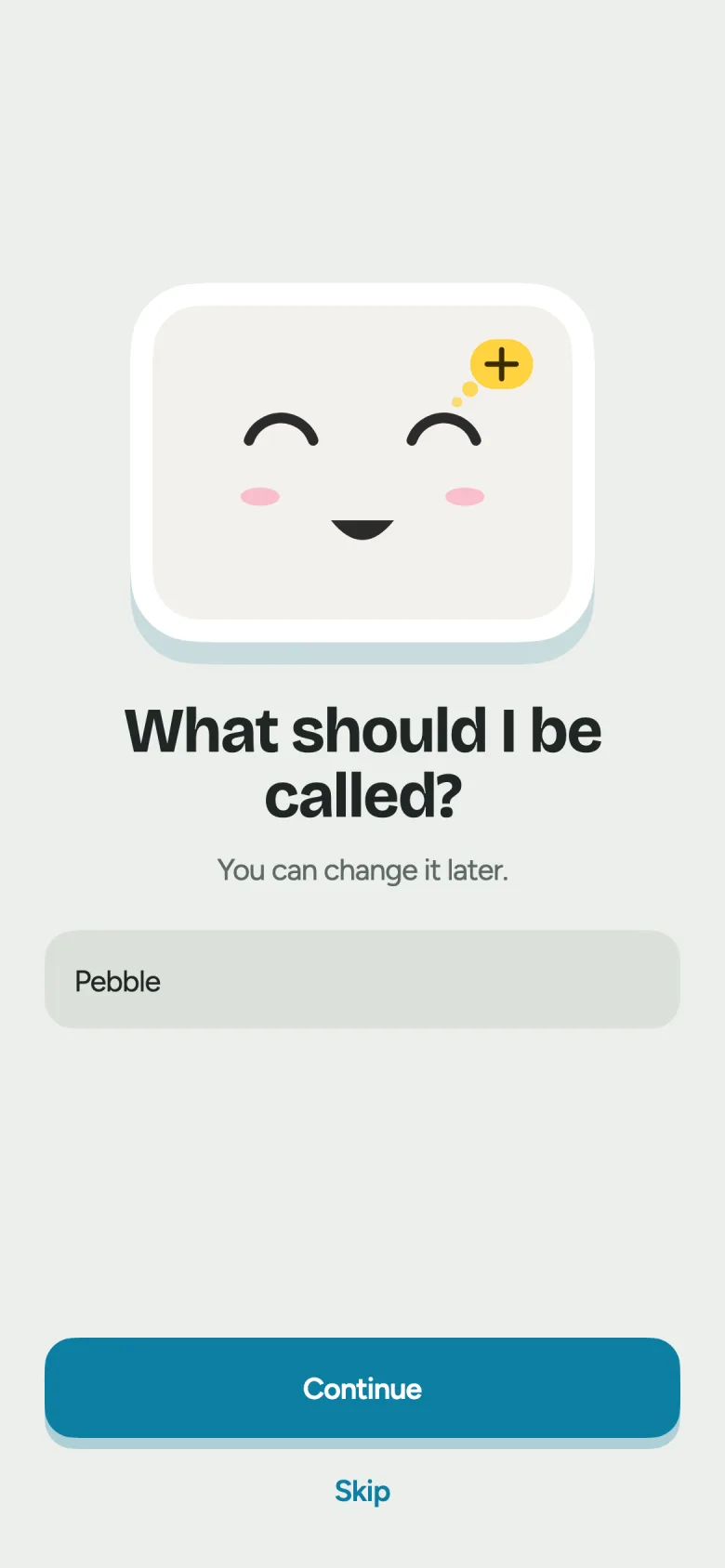
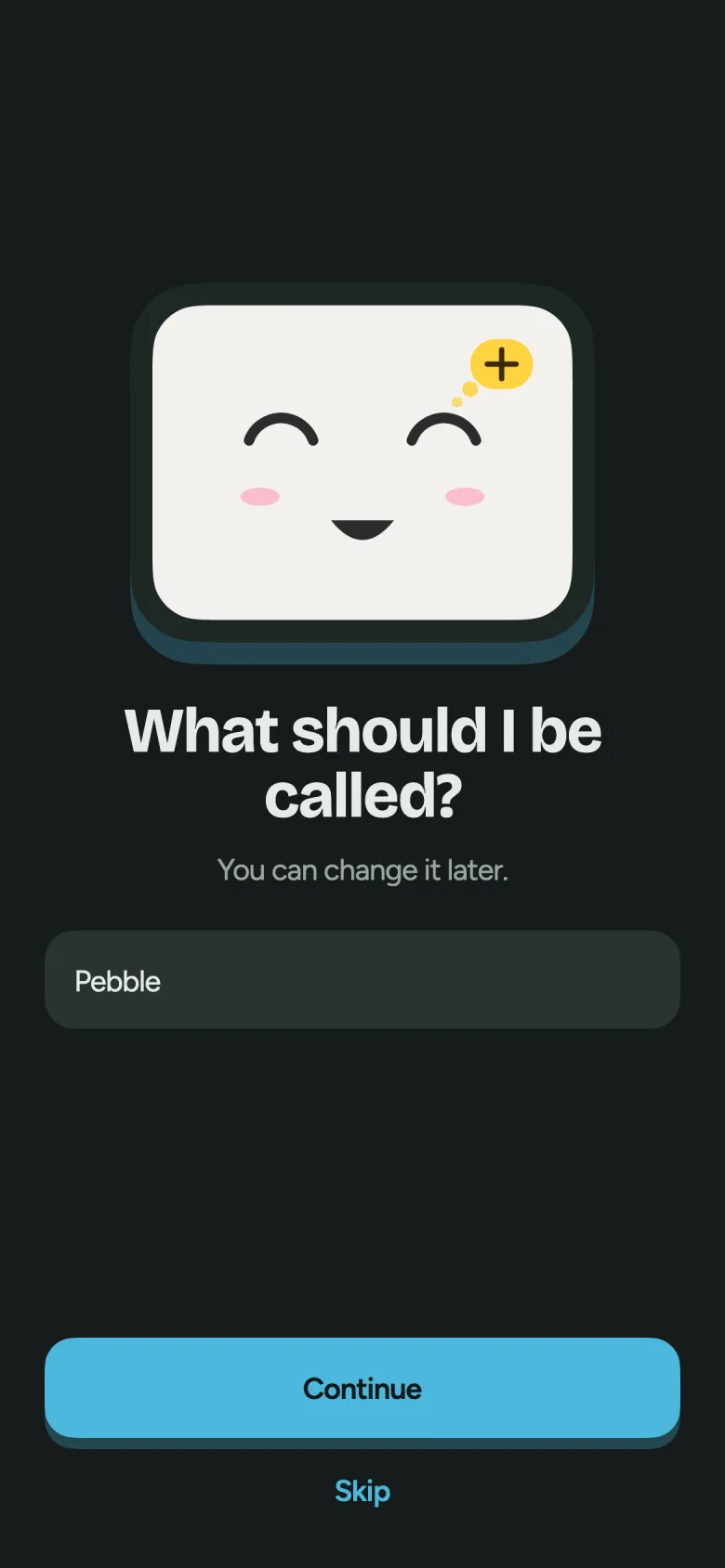
Pebble wears each face as you tap it, so you can see it before you choose. Then give it a name.
Say hello
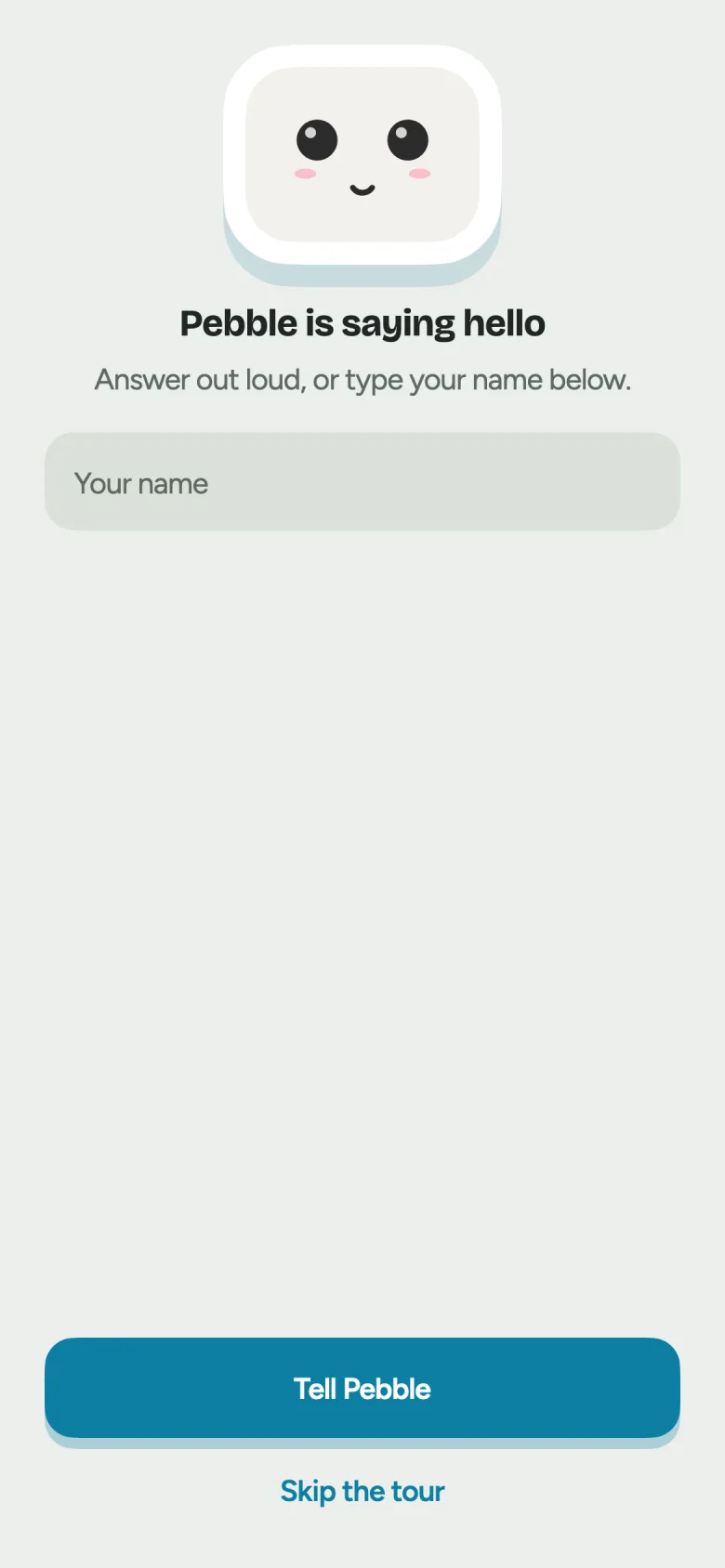
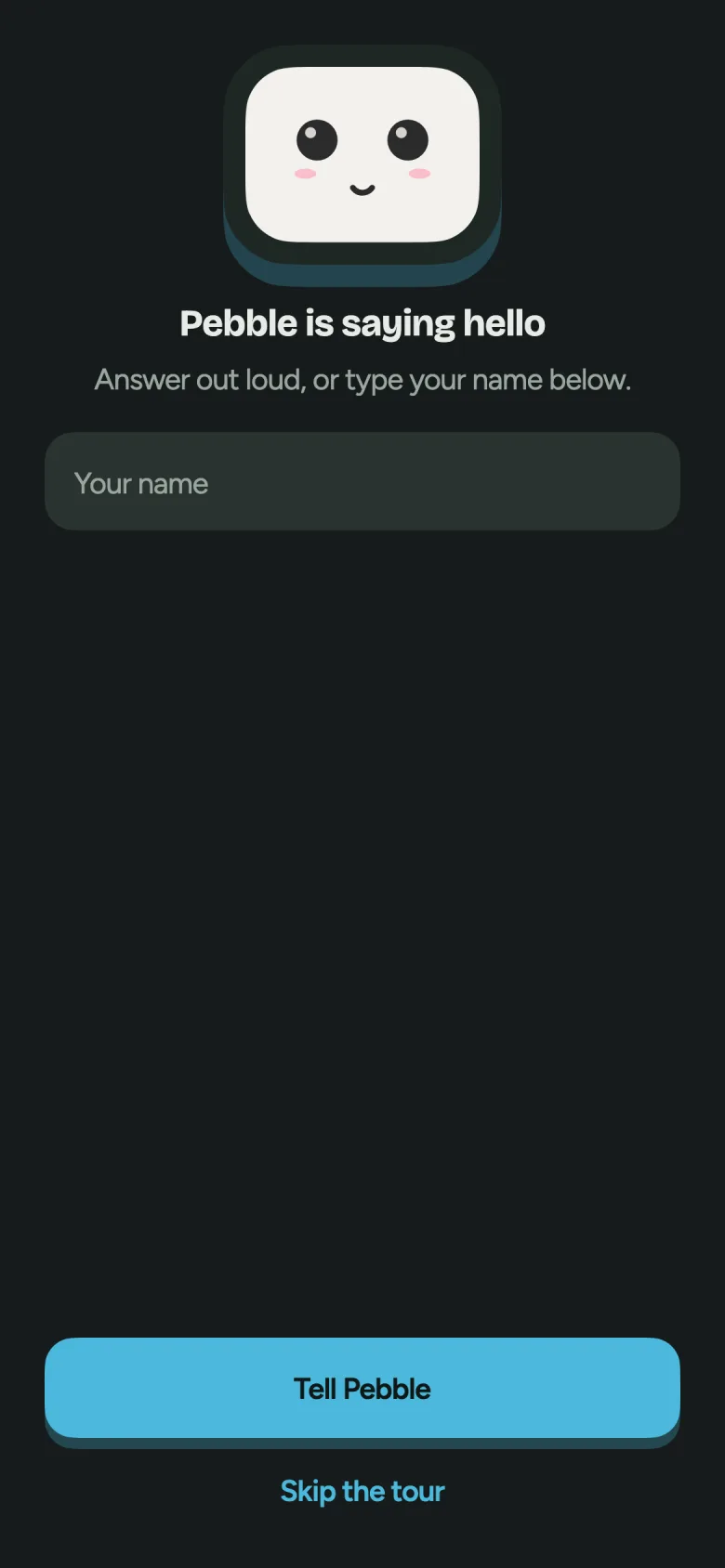
Pebble greets you and asks your name. Say it, or type it.
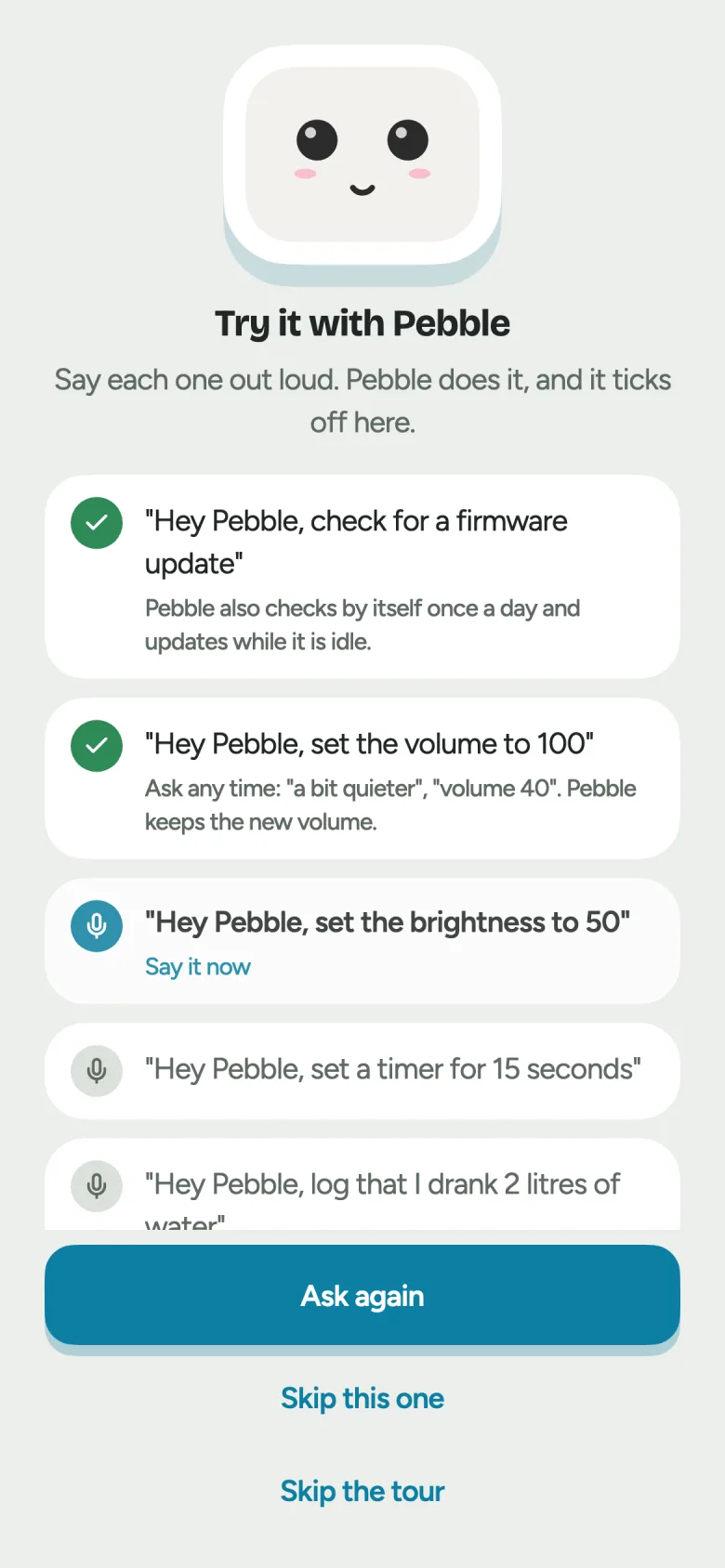
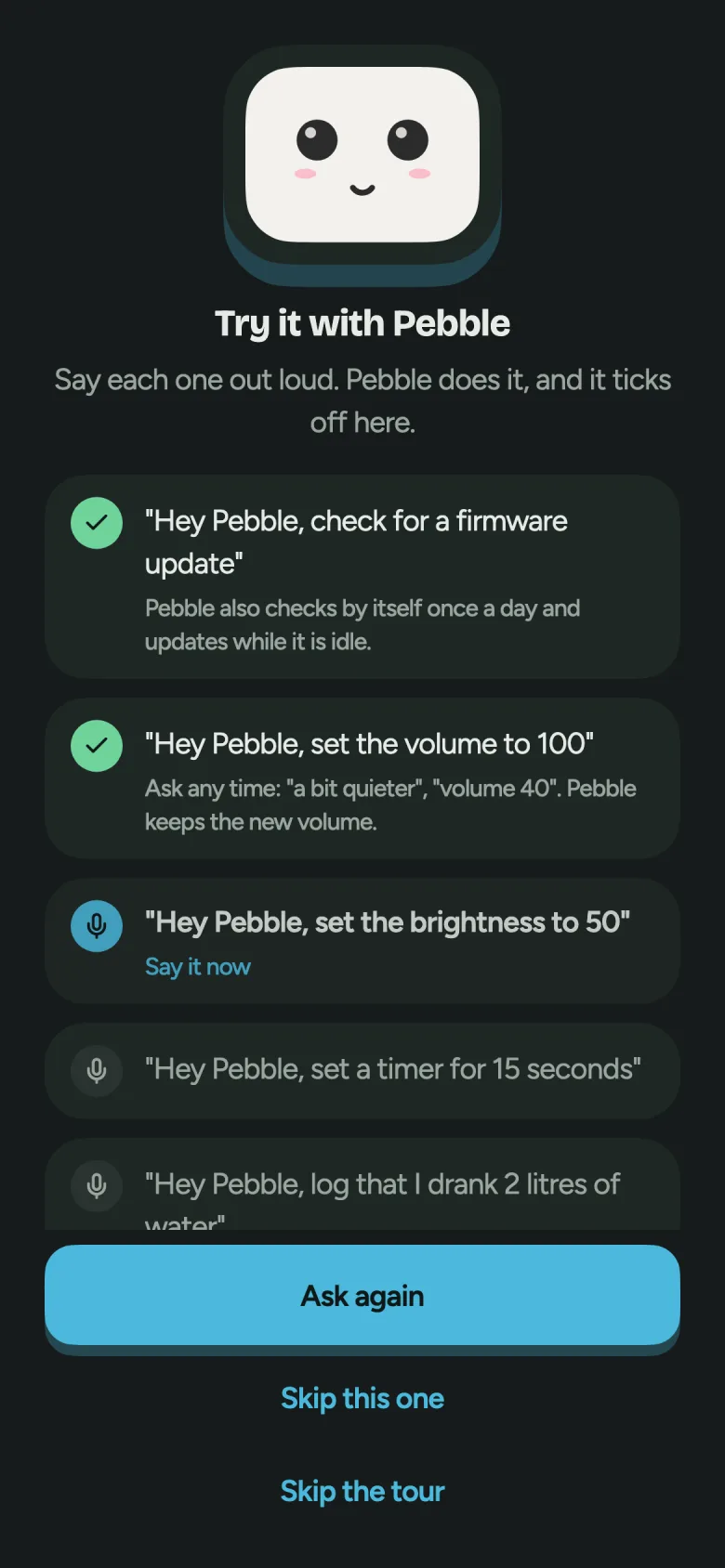
Then it asks you to try five things, one at a time, and the app ticks each one off. Any of them can be skipped.
- “Hey Pebble, check for a firmware update”
- “Hey Pebble, set the volume to 100”
- “Hey Pebble, set the brightness to 50”
- “Hey Pebble, set a timer for 15 seconds”
- “Hey Pebble, log that I drank 2 litres of water”
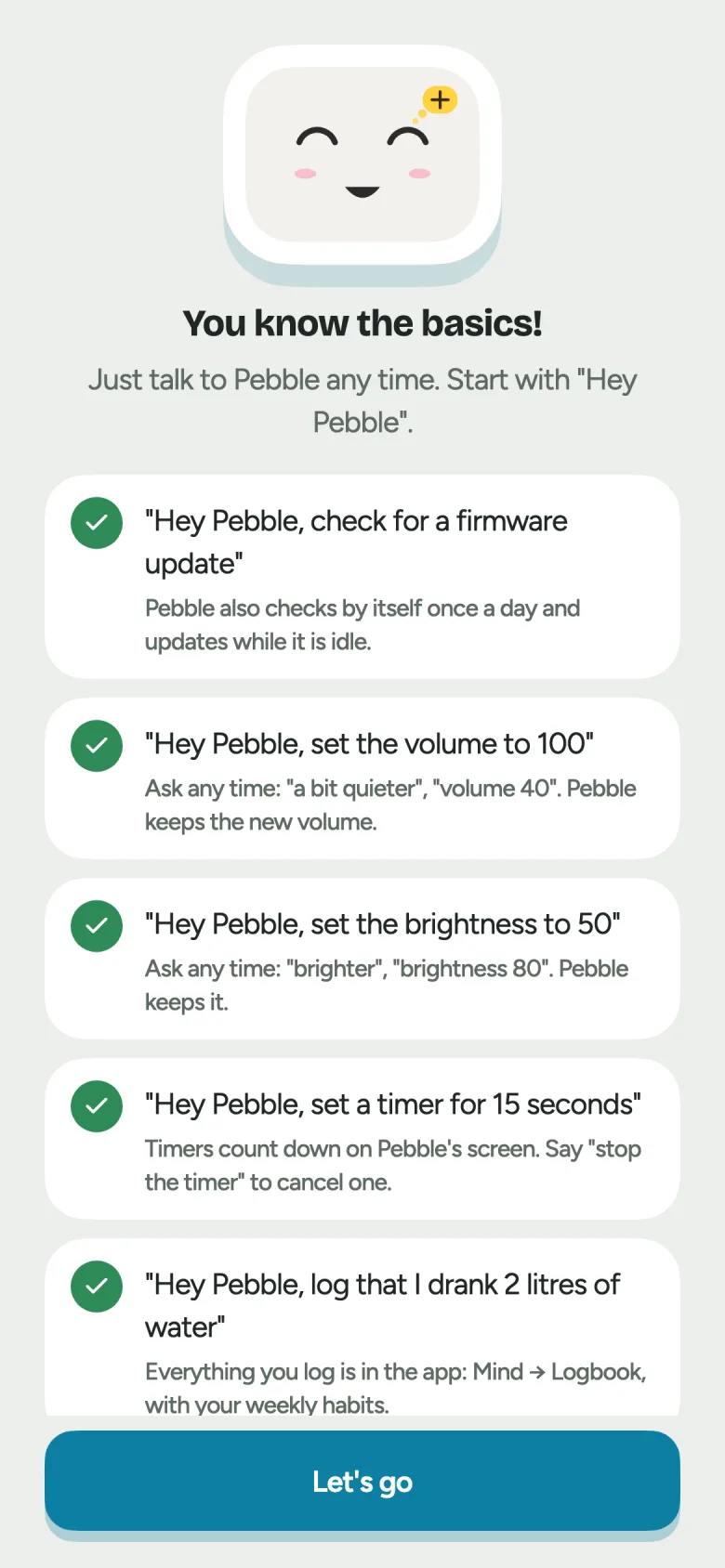
You’re all set — just say “Hey Pebble”.
Everything else lives in the app: faces, volume, timers and what Pebble remembers.
Open the Pebble appWi-Fi, briefly
- Pebble uses 2.4 GHz Wi-Fi
- Most home routers run both bands, which is fine. Just keep the 2.4 GHz one switched on.
- “No internet” is normal
- While your phone is joined to Pebble-XXXX it may say there is no internet. Stay joined until you have picked your home Wi-Fi.
- New router, or a new password?
- Press and hold Pebble’s face for 3 seconds, or open the app → Settings → Change Wi-Fi. Then do steps 3 and 4 again.
If something goes wrong
The Wi-Fi page didn’t open on your phone
Open Settings → Wi-Fi and tap Pebble-XXXX. The page opens right away.
Pebble says “OOPS! I can’t find…”
Your Wi-Fi is off or out of range. Check the router is on, then tap Retry. Moved, or changed Wi-Fi? Tap Add new Wi-Fi and do steps 3 and 4 again.
“Could not join Wi-Fi”
Wrong password, or a network that is 5 GHz only. Do steps 3 and 4 again with your 2.4 GHz Wi-Fi.
“Code expired”
The code ran out of time. Pebble restarts by itself — then follow its screen again.
“Pairing failed”
Pebble could not reach the internet. Check your home Wi-Fi works, then follow Pebble’s screen after it restarts.
Pebble’s screen stays dark
Check the adapter’s round plug is pushed fully into the socket at the back of the base, and that the wall switch is on. Then press the power button on the side of the head once.
The app says Pebble is offline right after step 5
Pebble restarts once after pairing. Wait about 20 seconds.
Pebble doesn’t answer “Hey Pebble”
Speak from about an arm’s length, in a quieter room. You can also double-tap Pebble’s head to start talking.
Still stuck? Tell us what you see — or write to support@pebblerobo.com and a person who built it answers.